Team and invitations
Invite teammates, understand seats, and manage pending invitations.
The organization owner manages the team from Organizations. Members join by accepting invitations; entering an email never adds someone immediately.
Open the organization
Select Organizations and open the organization you own. Check its name and plan notice.
Review seats
Look at used, pending, and remaining seats. The owner uses one seat. Each active pending invitation reserves another.
Send the invitation
Use the invite control in Members, enter the teammate’s email address, and send. Check the success or delivery message.
Share a link if delivery failed
If Bid Quota shows a copy-link panel because email could not be sent, copy that link and share it privately with the intended person. If copying is blocked, select and copy the displayed link manually.
Wait for acceptance
The person remains in Pending invitations until they accept. Refresh the roster to check the updated counts.
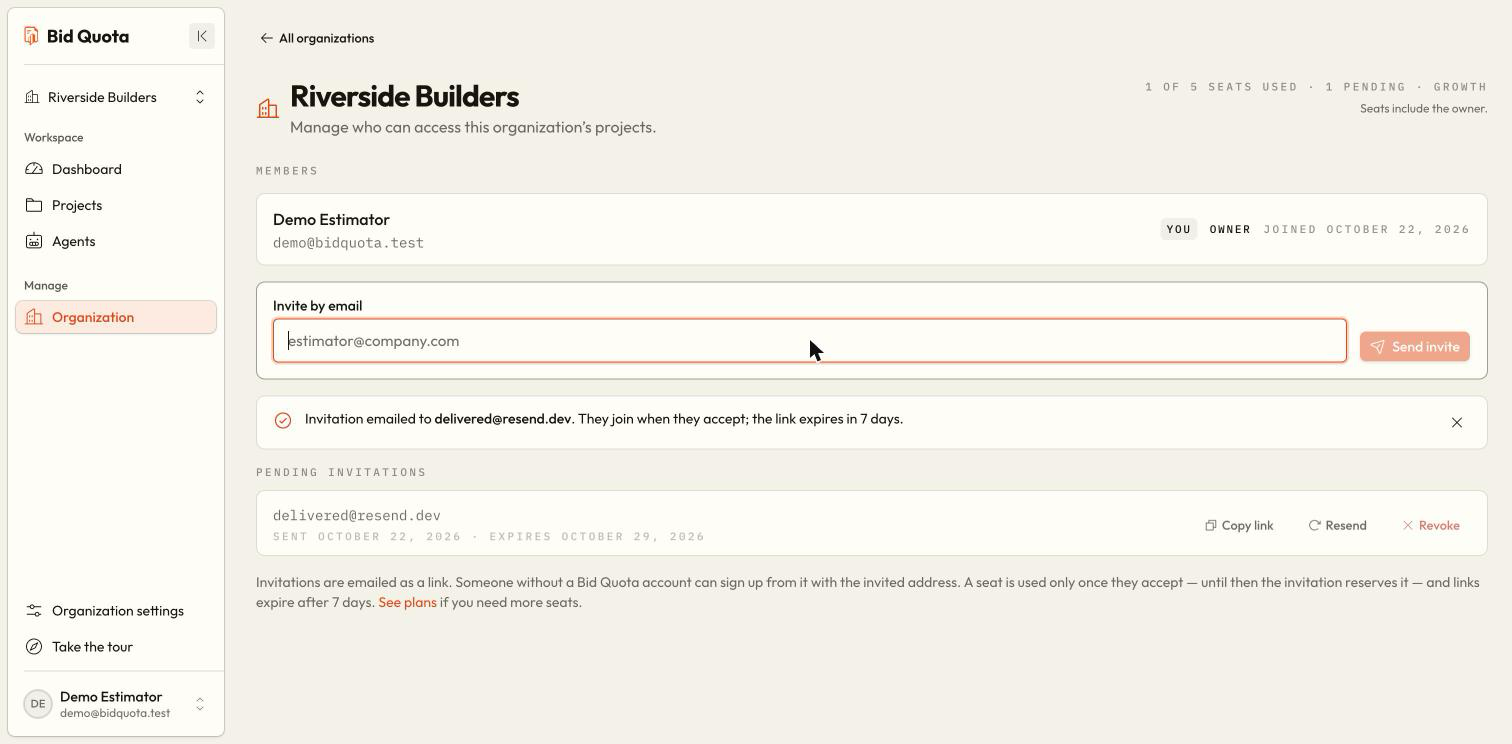
Manage invitations and members
Use Resend when an invitation needs to be delivered again. Use the newest invitation link after resending. Use Revoke to withdraw an invitation and release its reservation. The confirmation gives you a chance to check the intended person.
Remove a member only when they should lose organization access. Removing someone is different from revoking a pending invitation. The only remaining owner cannot be removed.
Why are seats full with fewer people listed?
Pending invitations count too. For example, an owner, two accepted members, and one pending invitation use or reserve four seats. Revoke invitations that are no longer needed or review the plan with the owner.
Plan and seat limits
Can a member invite someone?
No. Ask the owner to send the invitation. To join yourself, follow Accept an invitation.