Getting started
Go from signing in to reviewing your first bid package.
Use this walkthrough for your first job. You will need an account, the right workspace, and documents for the project. AI work needs an active plan and available AI credits.
Sign in and choose your workspace
Create an account with Google or with your name, email, and password. Email signup asks you to verify a six-digit code. Already invited? Accept the invitation and check the workspace name before you continue. See sign up and sign in.
Check the plan
Open Settings → Billing. The owner chooses a plan for this workspace. If you are a team member, ask the owner to resolve a plan notice. Open AI credits to check your available balance.
Create a project
Open Projects, choose New project, enter a clear project name and an optional description, then choose Create project.
Upload the bid set
Open Uploads and choose or drop PDF, Excel, or CSV files. Wait for Ready; a completed upload still needs time to be read. Large scans and drawing sets can take a few minutes.
Ask a focused question
Open Chat and try: “List the specified concrete strengths. Include the sheet and exact quote for each.” Check the evidence table against your documents. Type / to select a file or @ to select an agent.
Build and review the estimate
Open Estimate and choose a build option, or ask in Chat. Review the proposed lines and choose Update estimate to save them. Fill in missing quantities and rates using your own verified information.
Prepare the deliverables
Run analysis on RFIs, review the findings, then generate and edit your Proposal. Open Bid package to download the deliverables that are ready.
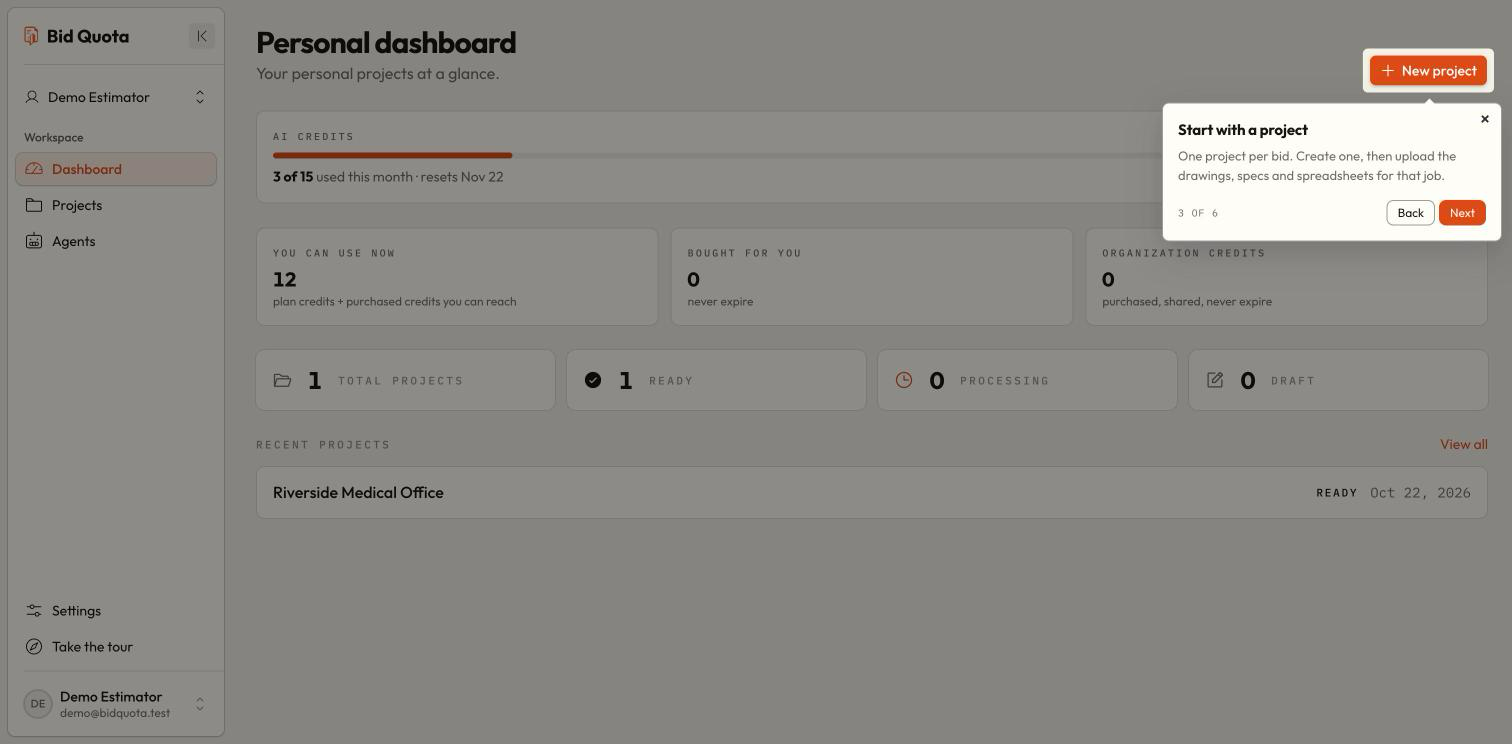
Use the tour
What should I check before sending a bid?
Review source quotations, low-confidence readings, missing scope, blank prices, units, markups, exclusions, and the final total. Open each downloaded file to make sure it contains the version you intend to issue.
Can I stop and come back?
Yes. Return to the same workspace and project to continue. Saved conversations and deliverables remain available. Edits to a chat table are kept in that browser separately from the saved estimate; see Chat.