Accept an invitation
Join the correct organization and understand invitation states.
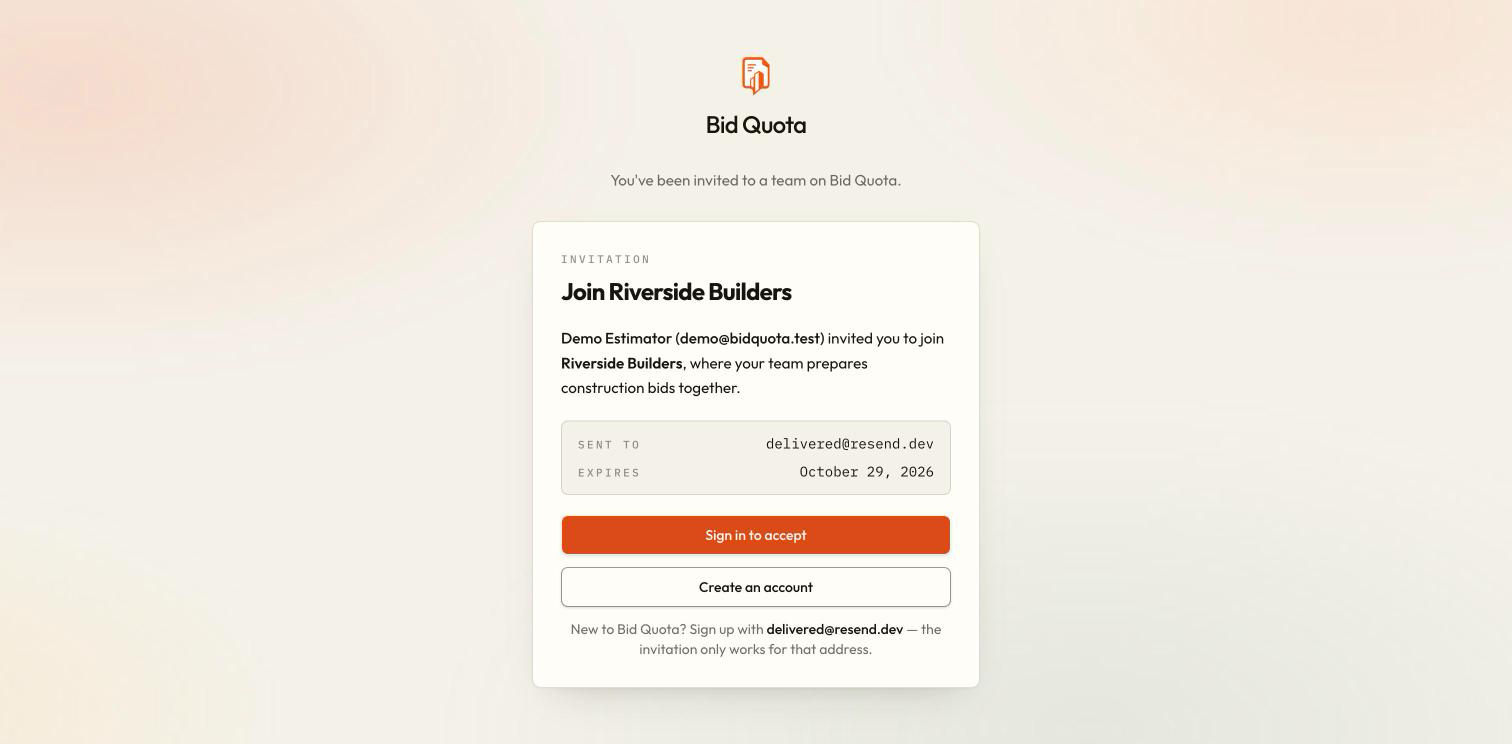
An invitation offers you a seat in an organization. Receiving the email does not grant access: you must accept it while signed in with the invited address.
Open the invitation
Follow the link in the invitation email. You can open it while signed out to see the organization and invitation status.
Use the invited address
Sign in or create an account using the address shown on the invitation. After sign-in or email verification, you return to the invitation.
Accept the invitation
Review the organization name and choose the accept action. Once accepted, Bid Quota switches to that organization. Its projects now appear in the workspace.
Check your workspace
Confirm the organization name in the workspace switcher. If you see your personal projects instead, select the organization from the switcher.
What the invitation messages mean
| Message or state | What to do |
|---|---|
| Already used | Sign in with the invited account and check the workspace switcher. |
| No longer active | The invitation may have been declined or revoked. Ask the owner for a new one. |
| Expired | Ask the owner to resend the invitation and use the latest link. |
| Invalid link | Check that you copied the complete link; ask the owner for a fresh invitation. |
| Could not load | Retry when your connection is working. This does not necessarily mean the invitation is invalid. |
| Seats full | Ask the owner to review the plan and reserved seats. Acceptance checks capacity again. |
Keep invitation links private
Can I decline?
Yes. Use the decline action if you do not want to join. Confirm the organization before declining. You will need another invitation if you later change your mind.
Where else can I find an invitation?
Pending invitations can appear on the dashboard and Organizations page for the invited account. Team owners manage sent invitations under team and invitations.