Dashboard
Find your work and understand the workspace overview.
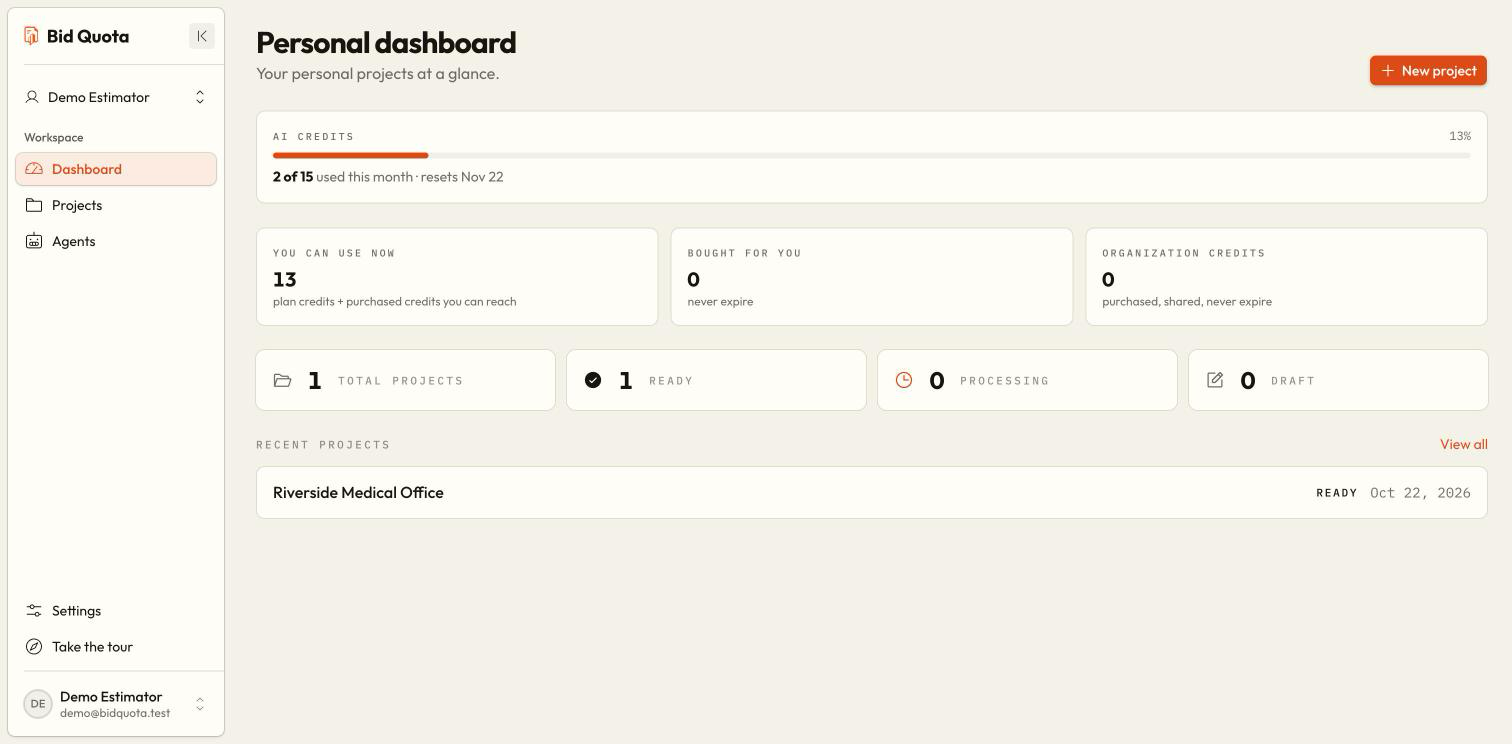
The dashboard is the starting point for the selected workspace. Use it to return to projects, see usage information, and find invitations waiting for your response.
Check the workspace name
Look at the workspace switcher in the sidebar. Personal work and organization work are separate.
Open your work
Choose a recent project or open Projects for the full list. If you are starting a new job, create it from the projects list.
Check notices
Read plan or usage notices before starting AI work. A plan notice belongs to the selected workspace, even if another workspace has a paid plan.
Learn the layout
Choose Take the tour in the sidebar. You can replay it later when you need a reminder.
What does an empty dashboard mean?
A newly created workspace may have no projects. If you expected existing work, check the switcher and make sure you accepted your team invitation. Do not create duplicate projects until you have checked the workspace.
Why is a project missing?
Open Projects and clear any search or filters. If it is still missing, select the organization that owns it. Ask the owner to confirm your membership if that organization is unavailable.
A quick orientation