Organizations and switching
Keep personal work and shared organization projects in the right place.
Your personal workspace is for your own work. An organization is a shared workspace with an owner, members, and its own plan. Buying a plan for one workspace does not activate every workspace in your account.
Switch workspaces
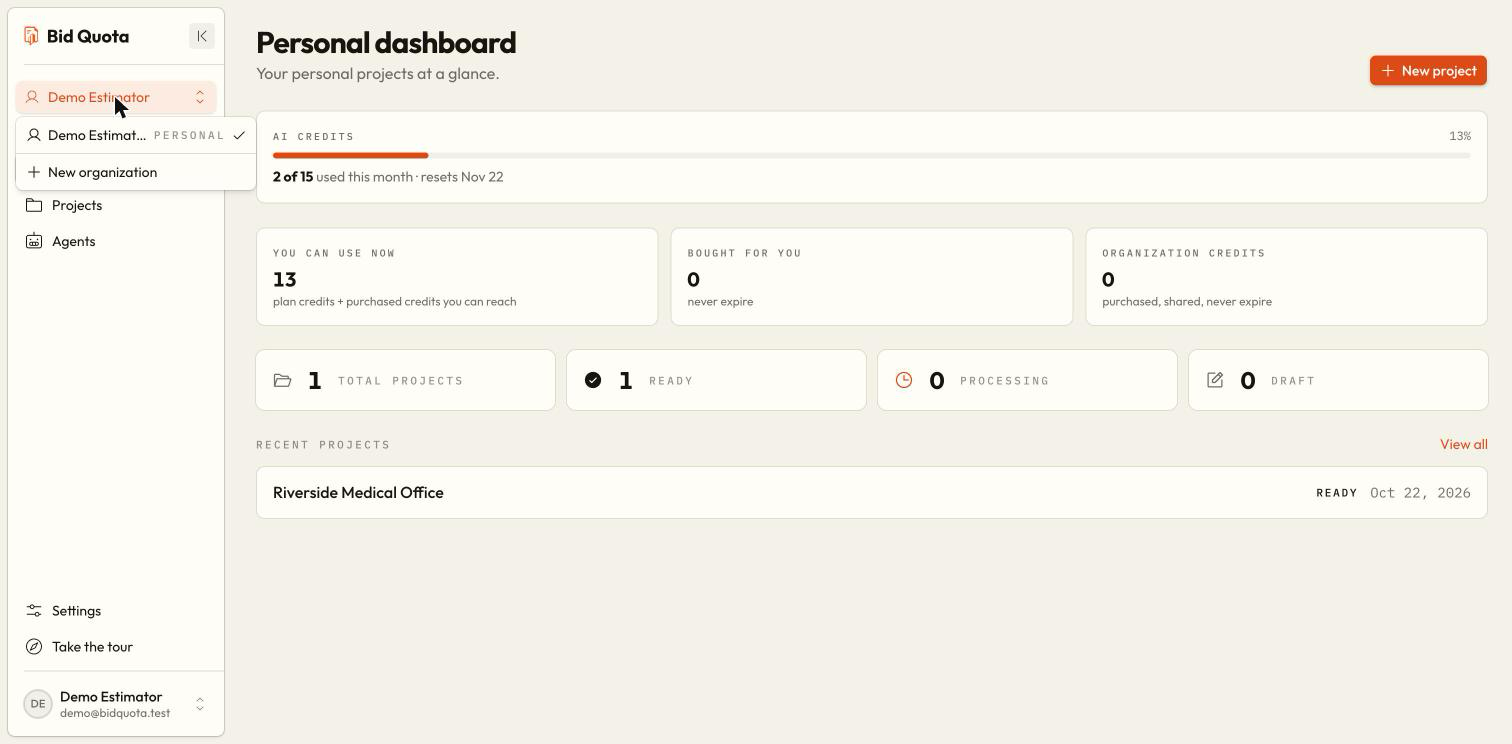
Open the switcher
Select the current workspace name in the sidebar.
Choose the organization or personal workspace
Select the workspace you need. Check the new name before opening or creating projects.
Return to the correct project list
Open Projects. Only projects in the selected workspace belong in this list.
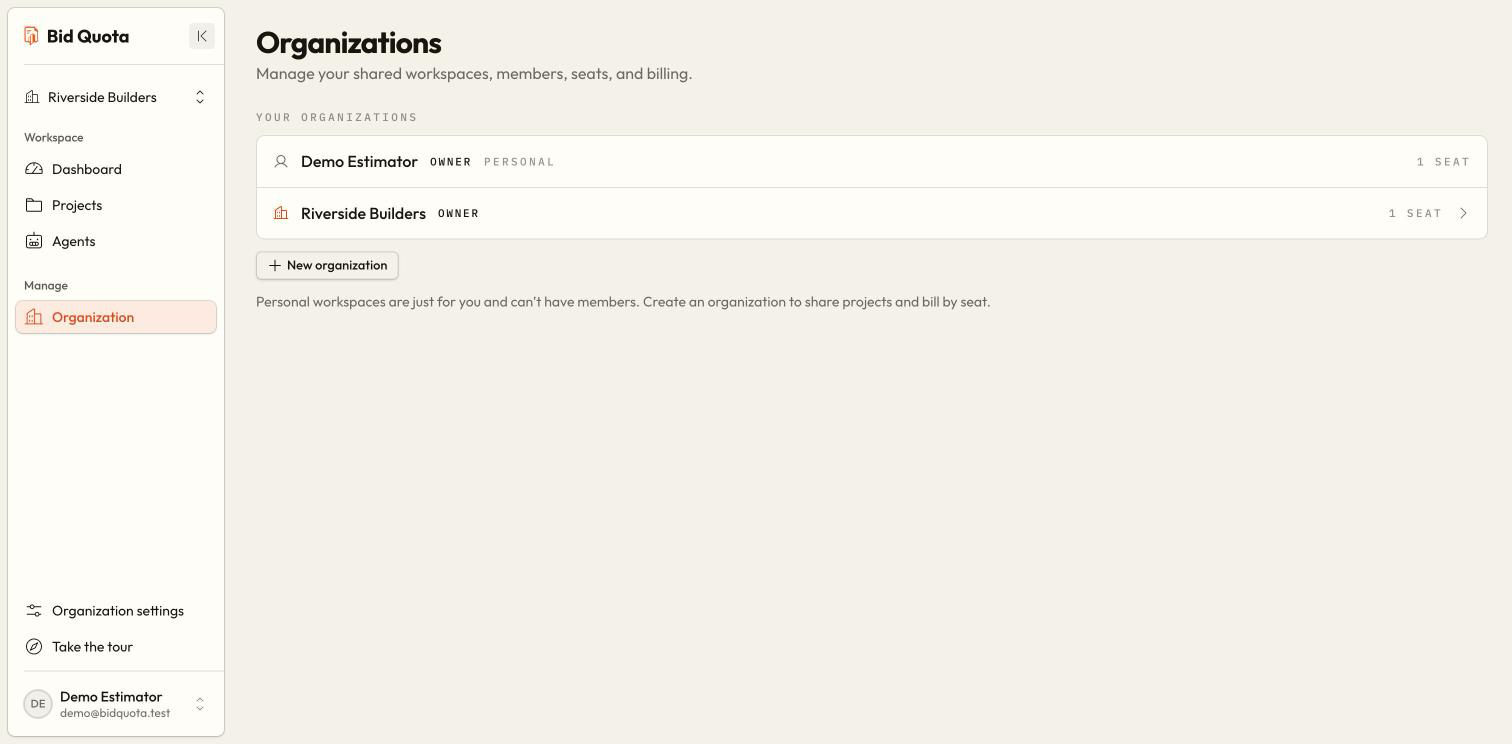
Create an organization
Open Organizations and choose the create action. Enter the organization's name and complete the form. Organization creation is subject to your account's plan eligibility and organization limit; follow any notice shown before continuing. Creating the organization does not move personal projects or give it another workspace's subscription.
The creator is the owner. Choose a plan for the organization before using paid features or inviting a team, then follow team and invitations.
Permissions at a glance
| Task | Who handles it |
|---|---|
| Switch to a workspace you belong to | You |
| Work on shared projects | Organization members, within plan limits |
| Change the subscription or open billing management | Owner |
| Invite, resend, revoke, or remove teammates | Owner |
| View your own AI credit balance | Every member |
| Manage AI credit caps and purchases | Owner or an assigned administrator |
Personal workspaces cannot have a team
Why did sign-in put me back in Personal?
A fresh sign-in starts in your personal workspace. Switch to your organization to continue shared work. Accepting an invitation is the exception: it opens the organization you just joined.