Uploads
Add construction documents and understand upload and reading progress.
Upload the documents you want the project assistant to use: PDF drawings and specifications, scanned PDFs, Excel workbooks, and CSV files. Printed notes and schedules in drawings can be read, but drawing geometry is not measured.
Open Uploads
Inside the project, choose Uploads. Check the project name before adding files.
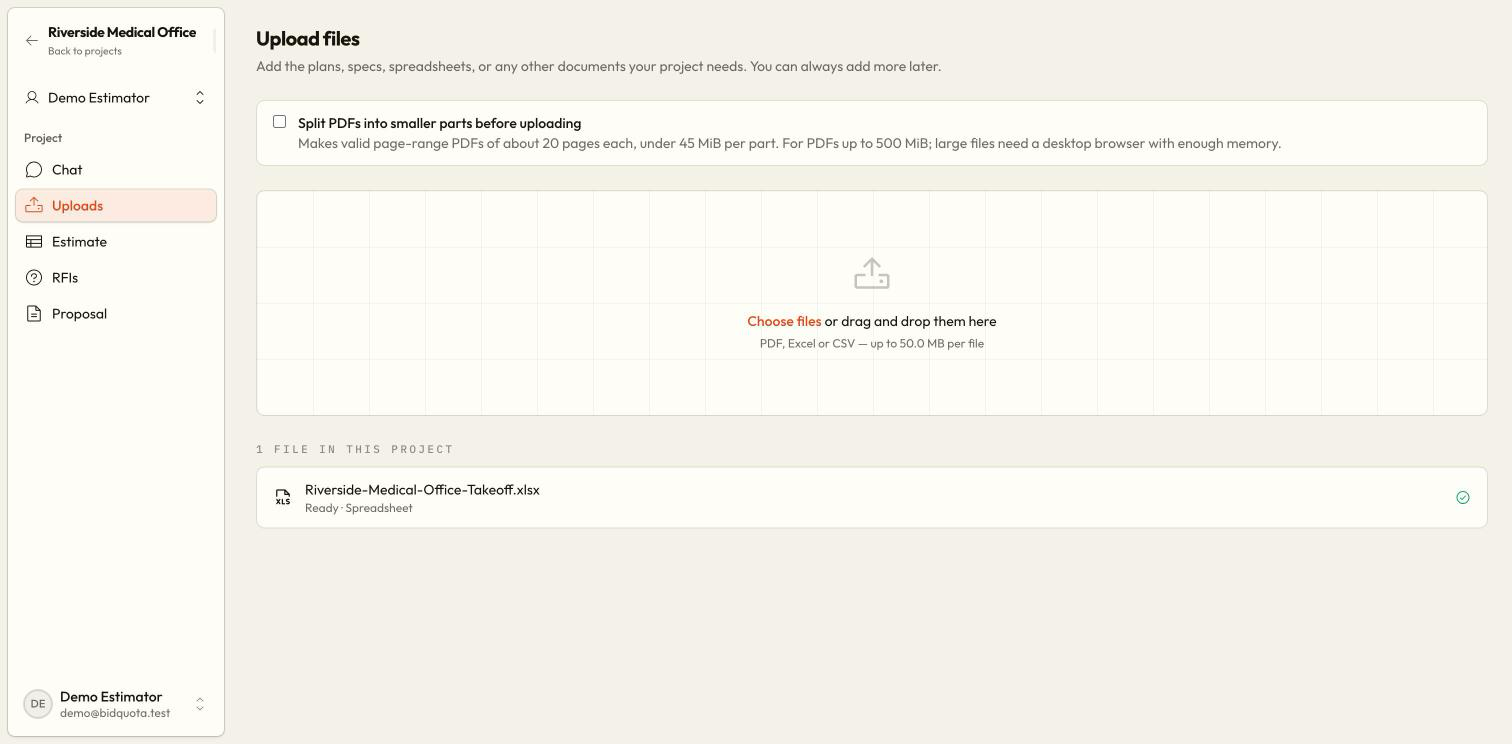
Choose your files
Choose Choose files or drag files into the upload area. You can select several files; they are uploaded in a queue.
Handle a large PDF
The normal limit is 50 MiB per file. Use the PDF splitting option for larger PDFs, up to 500 MiB before splitting. The page shows splitting progress and adds the resulting parts to the upload queue.
Wait for reading
Uploading sends the file; reading makes its contents available to the assistant. Wait for Ready before asking questions about the full set.
Check failed files
Read the error beside the file. Retry a failed upload or use the failed document’s retry action to read it again. Correct format or size problems before retrying.
Progress states
| State | What it means |
|---|---|
| Queued | The file is waiting for upload or reading. |
| Splitting | A large PDF is being divided before upload. |
| Uploading / Saving | The file is being sent and stored; 100% is not a completed read. |
| Reading the file | Content is being extracted; scans and drawing sets can take several minutes. |
| Ready | Reading is complete and the available content can be used in answers. |
| Failed | Read the reason and use the appropriate retry control. |
Scanned pages and drawings
Bid Quota reads scanned text and drawing labels using text recognition. Evidence from these readings receives low confidence. Open the original sheet and check dimensions, decimal points, symbols, and units before relying on it.
A readable file is better evidence
Can I attach a file while chatting?
Yes. Use the paperclip in the chat composer. Use Uploads when adding a batch. The chat Files panel lists documents; it is not another upload control.
A file stays on Reading
Allow time for a large scan, then check the page again. If it becomes Failed, use retry. For persistent issues, follow upload troubleshooting. Do not repeatedly upload duplicates while the original is still being read.