Sign up and sign in
Create your login, verify your email, and recover access.
Use Google or an email-and-password account to access Bid Quota. When joining a team, use the address that received the invitation.
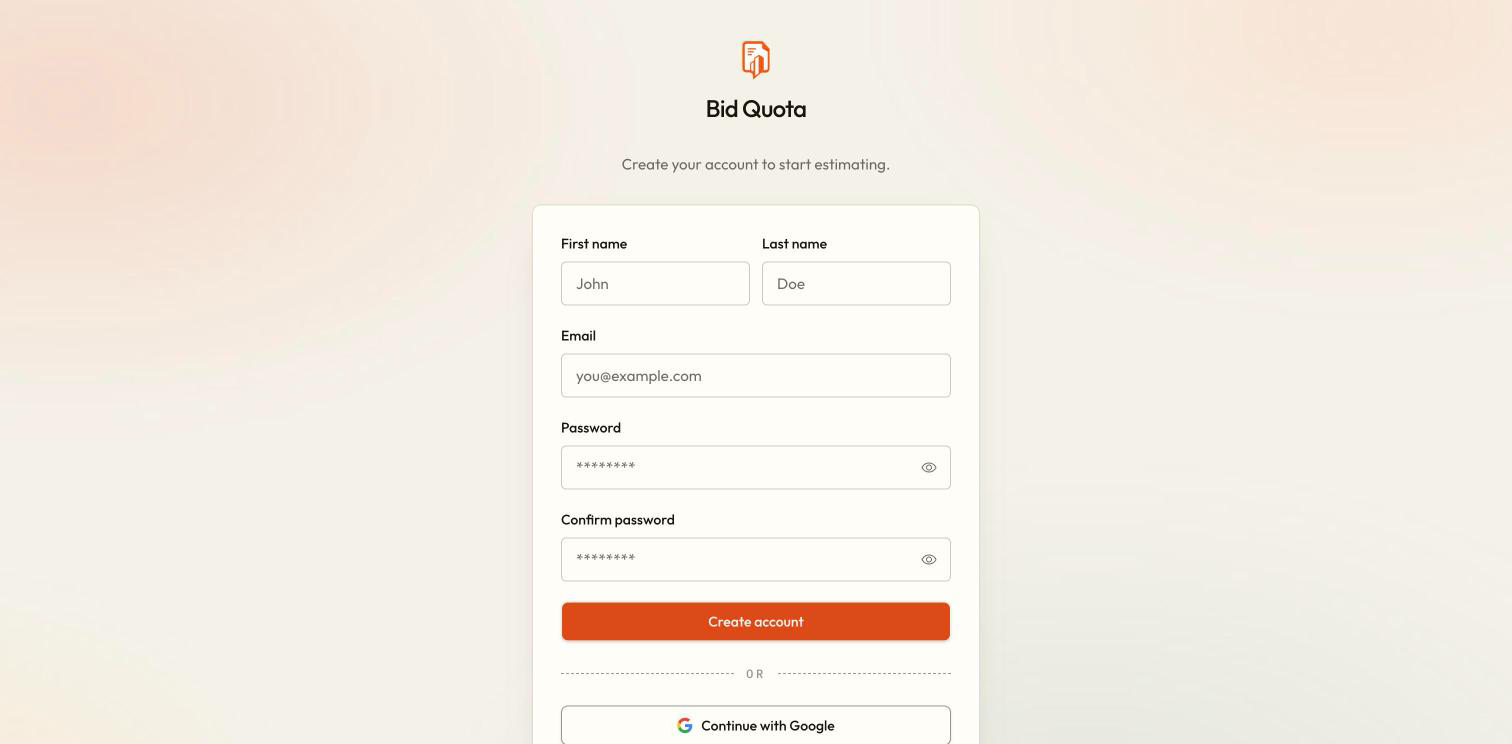
Create an account with email
Enter your details
On the sign-up page, enter your first and last name, email, password, and matching confirmation. Submit the form.
Check your inbox
Find the verification email. Enter its six-digit code on the verification screen and choose Verify. Keep the verification page open while checking your email.
Continue to your work
After verification, continue to the dashboard or the invitation you were accepting. Check the workspace name before creating projects.
Sign in to an existing account
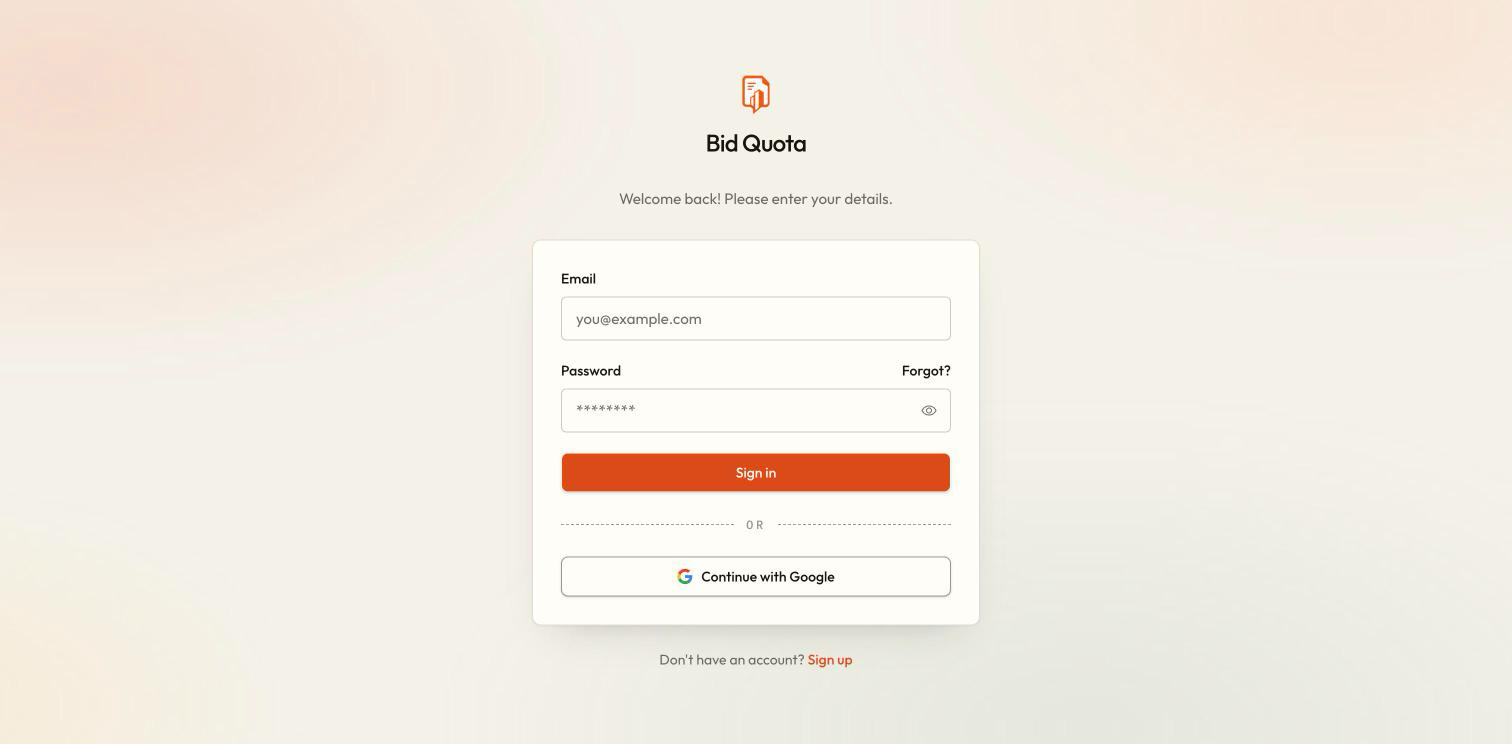
Choose your usual sign-in method
On the login page, enter your email and password, or use the Google sign-in button and select the Google account you used before.
Check where you landed
A fresh sign-in starts in your personal workspace unless you are returning to an invitation. Use the workspace switcher to open an organization.
Forgot your password?
Choose the password recovery link on the login page, enter your email, and follow the recovery instructions. The recovery verification screen uses an eight-digit code, followed by a new-password form. This differs from the six-digit signup code.
Code not arriving?
Does signing up include a plan?
Creating an account and choosing a plan are separate steps. Check Settings → Billing for the active workspace. If you belong to an organization, its owner manages the subscription.
Google opened the wrong account
Sign out, try Google again, and select the intended address. For an invitation, this must match the invited address. Do not create another account just to bypass a sign-in error.